Timecode Monitor & Generator
Overview
This is a tool for reading and displaying timecode (LTC: Linear Timecode) recorded as an audio signal. It can be used for checking synchronization between video and audio, and also as a timecode generator.
Since it can monitor timecode on independent left and right channels (L / R), it is also suitable for checking timecode discrepancies between different devices.
What this tool does in one sentence
- Monitor: Check whether incoming LTC is being decoded correctly
- Generator: Output LTC from MeasureLab
- Compare: Check how far the left and right channels are apart
What is Timecode (LTC)?
A timecode (LTC) signal contains precise time information (hour:minute:second:frame). Recording this audio to multiple cameras allows editing software to later use it to automatically synchronize their timelines.
Because LTC is carried as an audio signal, sending it directly to speakers or headphones will sound unpleasant. In normal use you send it to a camera, recorder, timecode input, or audio input instead.
Operation
Starting and Stopping Measurement
- Start Monitor / Stop Monitor Button: Starts and stops monitoring (reading) the timecode.
- When the generator is enabled, monitoring also starts automatically.
How to Read the Screen
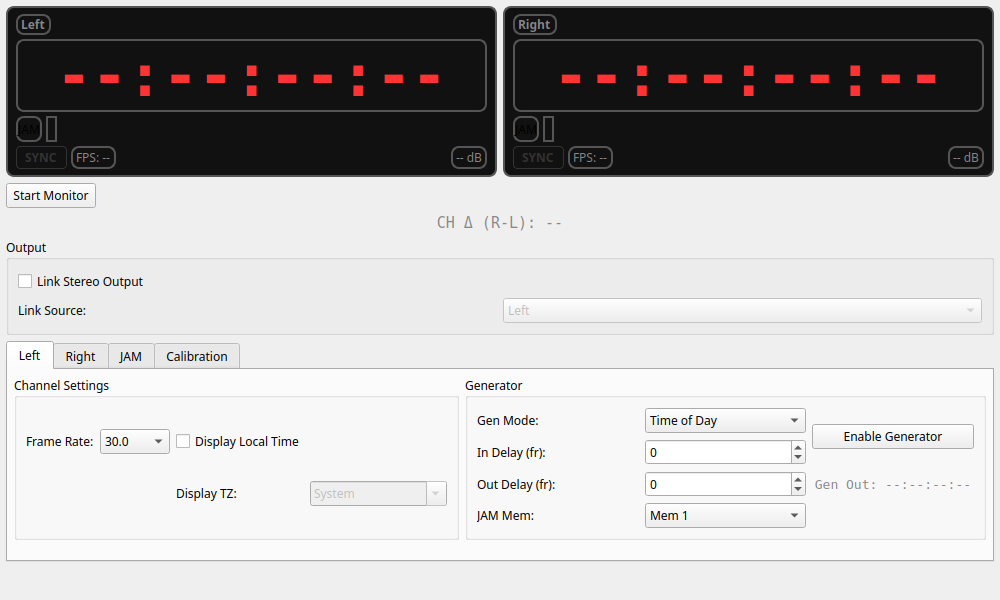
Main Display (Left / Right)
At the top of the screen, the timecode information for each of the left and right channels is displayed largely.
- Timecode (00:00:00:00): The time of the timecode currently being read (Hour:Minute:Second:Frame).
- SYNC Lamp: Lights up in green when the timecode signal is correctly locked (synchronized). It goes out if the signal is interrupted or if there is a lot of noise.
- FPS: The frame rate estimated from the input signal.
- dB (Level): The volume level of the input signal. Ideally, the timecode signal should be input at a relatively high level (around -10dB to -20dB).
- JAM Button: "Jams (sync copies)" the current input timecode. When pressed, the current input timecode is saved into an available JAM memory slot, and the generator can immediately start in JAM mode from that value (see "JAM Function").
Inter-channel Discrepancy Display (CH Δ)
- CH Δ (R-L):
Displays the discrepancy between the timecodes of the right and left channels.
- If perfectly synchronized,
0 fr (0.0 ms)is displayed. - This is convenient for checking if the timecodes between cameras are not out of sync in multi-camera recordings, etc.
- If the left and right frame-rate settings do not match, the tool cannot compare them and shows
--instead.
- If perfectly synchronized,
Settings
Detailed settings are possible within the tabs for each channel (Left / Right).
Channel Settings
-
Frame Rate: Manually sets the frame rate of the timecode (for example
23.98,24.00,25.00,29.97,30.0).- This helps the decoder lock correctly. If auto detection is unstable, set it to match the incoming signal.
29.97Dand30.0Duse drop-frame style notation. This is common in video workflows where the displayed timecode needs to stay close to real elapsed time.
-
Display Local Time: Interprets the timecode (Hour:Minute:Second) as the current time and displays it converted to the time of the specified time zone.
- Display TZ: Target time zone to convert to (e.g.,
Asia/Tokyofor Japan time). - Example: Used when the timecode is recorded in "UTC time" and you want to display it corrected to "Japan time."
- Display TZ: Target time zone to convert to (e.g.,
Generator (Generator Function)
A function for outputting a timecode signal from MeasureLab. After performing settings in this tab and pressing Enable Generator, a timecode sound will flow from the audio output.
-
Gen Mode (Generation Mode):
- Time of Day (TOD): Outputs the current time of the computer as timecode.
- Free Run: Starts counting up from
00:00:00:00or a specified time. - JAM: Outputs in synchronization with the external timecode captured with the JAM button.
-
Link Stereo Output: A checkbox in the center of the main screen. When enabled, one channel is treated as the source and the same timecode is output from both left and right.
- Link Source: Chooses which side acts as the source.
- In practice, this works like making one side the parent output while the other follows it.
JAM Memories
A tab where you can check the history of timecodes captured with the JAM button. Up to 5 slots are saved, which can be referenced later or used as initial values for the generator.
- Slot: Memory number (1-5)
- Captured: The timecode value at the moment the JAM button was pressed.
- Current: The estimated current timecode value, calculated by adding the elapsed time since capture.
Calibration
A feature to measure and automatically compensate for the input/output latency (delay) of the audio interface.
- Connect the output (L or R) of the audio interface to the input in a loopback configuration.
- Select the connected channel in Channel.
- Press Run Calibration.
- A short test signal is output, and the number of frames delayed until it is input is measured.
- Based on the measurement result, In Delay (input compensation) and Out Delay (output compensation) are automatically set. This corrects display discrepancies during monitoring and phase discrepancies in generator output.
Calibration measures audio path delay. It does not rewrite the timecode content itself. If you change your wiring or interface, it is worth running again.
Usage Examples
Checking Timecode
Input an LTC signal output from a camera or recorder into the audio interface and check if the timecode is correctly recorded and if the time is correct.
Synchronization Check for Multi-camera
Input the timecode outputs of two cameras into the L and R channels, respectively. By looking at the display of CH Δ (R-L), you can see at a glance if the two cameras match perfectly (are synchronized) in frame units.
Timecode Playback Instead of a Slate (Clapperboard)
By running this tool as a generator in "Time of Day" mode during video shooting and sending that audio to the camera's audio input, it can be used as "audio timecode" to make it easier to automatically synchronize video and audio during editing.
Quick Path When You Are Not Sure
- Press Start Monitor and confirm that the SYNC lamp becomes stable.
- If it does not lock, set Frame Rate to match the incoming signal.
- To compare two devices, feed them into L and R and watch CH Δ.
- To output LTC from MeasureLab, choose a Generator mode.
- To continue from an external device's current value, press JAM.