Transient Analyzer (Transient Response & Wavelet Analysis)
Overview
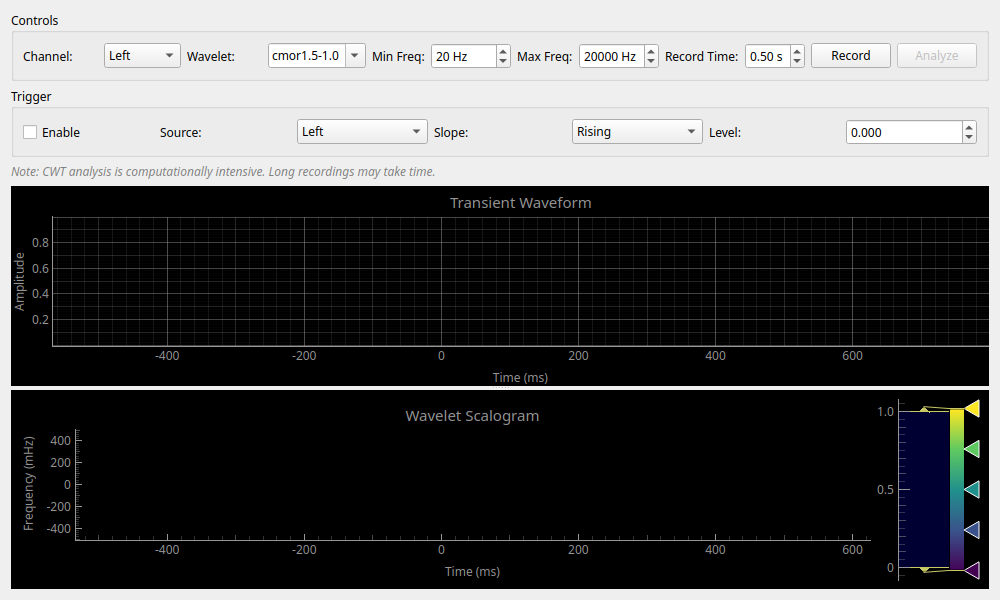
A tool for detailed analysis of "transient sounds," such as instantaneous impact sounds or sounds whose frequency changes from moment to moment. It uses the Continuous Wavelet Transform (CWT) to visualize sounds while maintaining temporal resolution—capturing "when and at what pitch a sound occurred"—which is often difficult for standard FFT analysis to achieve.
Operation
Recording
- Record: Pressing this button starts the recording. It stops automatically after acquiring data for the set time (Record Time).
- Trigger: Like an oscilloscope, recording can be started at the moment a sound volume beyond a certain Level is detected. This is useful when you want to automatically capture a sound exactly when you clap your hands.
Analysis
- After recording is complete, press the Analyze button to perform the Wavelet Transform.
- This process is computationally intensive and may take several seconds to show results.
Reading the Charts
- Transient Waveform (Top): The waveform of the recorded sound (Time axis).
- Wavelet Scalogram (Bottom):
- Horizontal axis: Time
- Vertical axis: Frequency (Logarithmic display)
- Color: Intensity at that moment.
- Similar to a spectrogram, but it analyzes low-pitched sounds broadly in the time direction and high-pitched sounds sharply. This allows for a well-balanced simultaneous display of instantaneous click sounds (time information) and low hums (frequency information).
Settings
Controls
- Channel: Select the channel to record and analyze (Left / Right / Average).
- Wavelet: Selection of the waveform (mother function) type used for analysis.
- Options:
cmor1.5-1.0,mexh(Mexican Hat),morl(Morlet),cgau1,gaus1. - Generally, the default setting
cmor1.5-1.0(Complex Morlet wavelet) is the most well-balanced and suitable choice.
- Options:
- Min / Max Freq: Specifies the frequency range (lower and upper limits) to be analyzed. By narrowing it down to the band you want to see, you can eliminate wasteful calculations and get clearer results.
- Record Time: Sets the recording time (in seconds). The default is 0.5 seconds. Setting it too long will significantly increase the calculation time.
Filter Ringing Analysis
A feature to evaluate ringing (pre-echo and post-echo) in digital filters such as DACs.
- Enable Analysis & Overlay: When checked, ringing evaluation regions are highlighted on the waveform graph, and metrics are calculated.
- Window: Specifies the width (in milliseconds) of the time window for calculating ringing energy.
- Pre/Post Ratio: Displays the energy ratio (in dB) between the pre-echo (before the impulse peak) and the post-echo (after the peak).
- Filter Type: Displays the inferred filter type (Linear Phase, Minimum Phase, Intermediate Phase, etc.) based on the symmetry of the ringing.
Use Cases
- DAC Filter Ringing Evaluation: By inputting an impulse response, visually and quantitatively evaluate what type of digital filter (e.g., linear phase, minimum phase) the DAC is using, and the strength of the pre-echo.
- Impact Sound Analysis: Examining the response when a pulse is input to a speaker (impulse response) or changes in sound components when something collides.
- Evaluation of Instrument Attack: Detailed observation of how harmonics appear at the moment a musical instrument starts sounding. For example, you can clearly separate and observe the difference between the impact sound of the hammer the moment a piano key is struck, and the resonance of the strings that follows.