Waveform Loop Player
Overview
A tool that allows you to load an audio file, inspect its waveform, and loop a selected region. It is highly useful when you want to repeatedly play back a specific audio signal or a transient waveform and observe it in detail using an oscilloscope or a spectrum analyzer.
Operation
Waveform Display & Region Selection
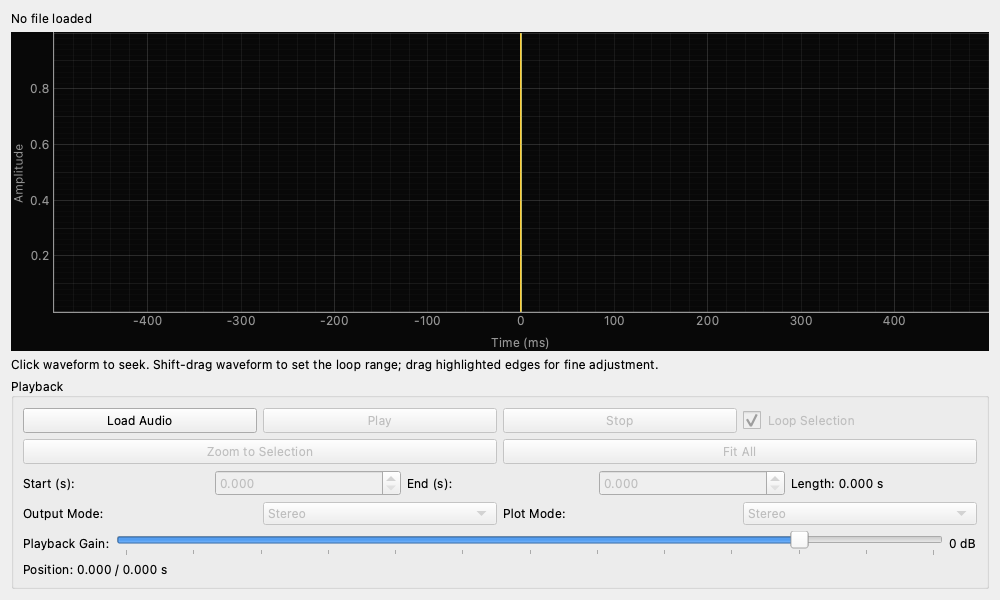
The waveform is displayed on the graph. You can use the mouse to change the playback position and set the loop region.
- Seeking: Click anywhere on the waveform to move the playback cursor (yellow vertical line) to that position.
- Setting the Loop Region: Drag the left and right edges of the highlighted area (blue region) on the waveform to intuitively set the region for looping.
Playback Controls
- Load Audio: Opens an audio file (WAV, MP3, FLAC, OGG, etc.). If the file's sample rate differs from the engine's, you will be prompted to resample.
- Play / Pause: Starts or pauses playback.
- Stop: Stops playback and resets the cursor position to the start of the selected loop region.
- Loop Selection: When checked, the selected region plays repeatedly. If unchecked, playback stops when reaching the end of the region.
- Zoom to Selection: Zooms the waveform display to fit the currently selected loop region.
- Fit All: Resets the waveform zoom to display the entire file.
Settings
- Start (s) / End (s): Directly input the start and end positions of the loop region in seconds. This is synchronized with the drag operations on the waveform.
- Output Mode:
- Stereo: Outputs the file's L/R channels as-is.
- Left: Outputs only the left channel.
- Right: Outputs only the right channel.
- Mono: If the file is stereo, it mixes the left and right channels to mono.
- Playback Gain: Adjusts playback volume digitally (-60dB to +12dB).
Usage Examples
Repeated Observation of Transient Responses
Load an audio file containing a single transient hit, such as a kick drum with a strong attack, and select only the region immediately around the hit to loop. This allows you to repeatedly and stably observe the transient response while triggering it in other measurement widgets.
Analyzing Specific Phrases
Select a specific part of a song (for example, the exact moment a specific chord is played or where a noise artifact is present) and use it in conjunction with a spectrum analyzer to analyze the frequency components in detail.
Playback headroom
Playback Gain remains explicit: files are not automatically normalized. Near-full-scale files may have inter-sample peaks above 0 dBTP, and resampling can produce samples above 0 dBFS. Reduce Playback Gain as needed. A 3 dB reduction is a useful precaution, not a universal guarantee. The global Error indicator latches mixed output sample peaks above 0 dBFS before quantization; its absence does not imply true-peak safety. Physical output attenuation is not applied automatically.