Log Viewer
Overview
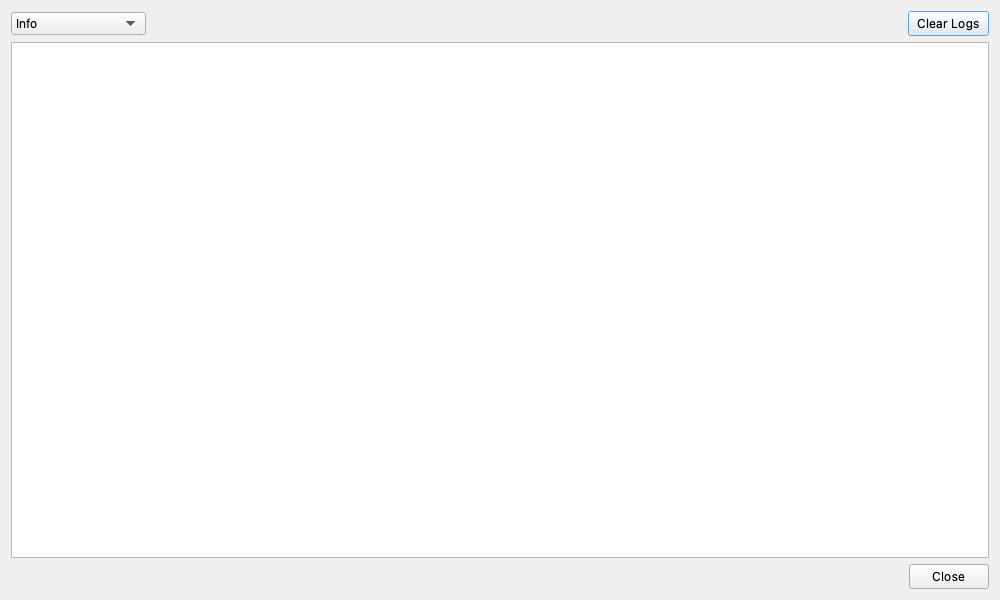
The Log Viewer is a monitoring window that displays real-time messages about what is happening behind the scenes of the application (events, warnings, errors, etc.). While you don't normally need to keep it open, it is highly useful for diagnosing issues when something goes wrong or for checking the status of background operations.
Key Features
- Real-time Display: Log messages appear immediately as they are generated.
- Filtering: You can select the log level (importance of the information) to display, allowing you to focus only on relevant information.
- Color-Coded Messages: Messages are color-coded based on their severity (e.g., errors in red, warnings in yellow) so you can quickly identify their importance at a glance.
- Clear Logs: You can clear the currently displayed logs to focus only on new messages.
Operation
- Click the "Logs" button located below the gear icon (Settings) in the left menu to open the "Log Viewer."
- Select the desired log level from the dropdown menu at the top.
All Logs (DEBUG): Displays all detailed logs. While it provides a large amount of information, it is the most helpful setting for developers when troubleshooting.Info: Displays general information and more critical messages (default setting).Warnings: Displays only warnings and errors.Errors Only: Displays only error messages.
- Click the "Clear Logs" button to completely clear the display.